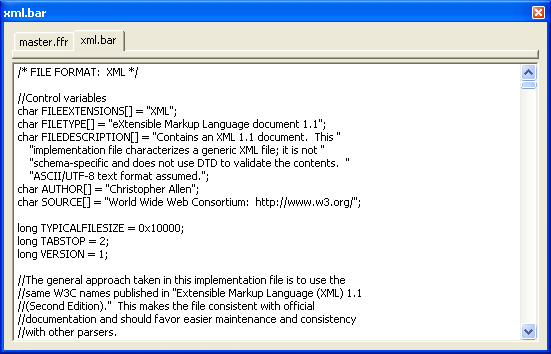
From the File menu, you can open an implementation file to
serve as a schema for the existing file. You can also open
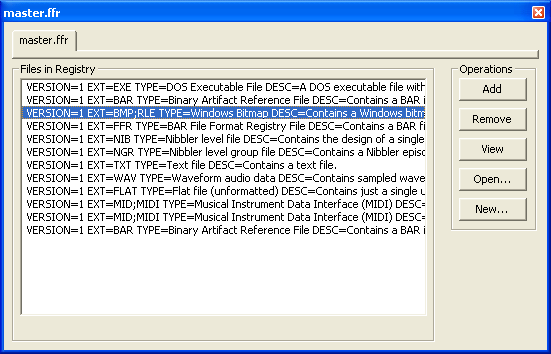
a file format registry, select its tab, and select a schema from the
list shown. The following steps show how this is done.
 |
 |
|
Stand-alone implementation file method
-
Select File.Open BAR Implementation File.
-
Choose an implementation file from the dialog. The implementation file
information displays in the data display window.
-
Select File.Open Data File.
-
Choose a data file from the dialog. The I.F. determines which file
extension filter is used; you can turn the filter off by selecting "All Files
(*.*)" from the File Type combo box.
|
Embedded-within-registry method
-
If the master registry is loaded on startup, you might be able to skip steps 2
and 3.
-
Select File.Open BAR Registry.
-
Choose a registry file from the dialog. The registry contents displays in
the data display window.
-
Select a file format from the list (e.g. BMP).
-
Select File.Open Data File, or click the Open
button in the data display window.
-
Choose a data file from the dialog. The I.F. determines which file
extension filter is used; you can turn the filter off by selecting "All Files
(*.*)" from the File Type combo box.
|
 What happens next will vary,
depending on the I.F. used to deserialize the file. The stand-alone I.F.
example on the left will open an XML document, while the registry-based I.F.
example on the right will open a BMP image file. What happens next will vary,
depending on the I.F. used to deserialize the file. The stand-alone I.F.
example on the left will open an XML document, while the registry-based I.F.
example on the right will open a BMP image file.
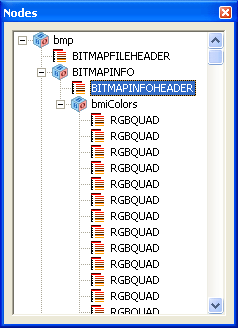
Generally speaking, the result will look like the picture to the left.
The I.F. used in the deserialization process determines how the node hierarchy
is constructed, so different implementation files will yield very
different-looking trees.
However the tree looks, you can do whatever you want now to the data:
view, edit, copy, paste, query, or compare. Please note that in
BARfly Bronze, you cannot edit the displayed data--you can only view.
If you have BARfly Silver or better, you can edit the file "piecemeal" using
the mouse, keyboard, and the Edit and Insert
menus. You can find more information about how to do this in the section
on node editing.
You need to be aware of a very important issue when it comes to binary file
processing: validation of the file that must be opened is a very tricky
and exacting process. Corrupted files and files that don't match the
format of the I.F. will not open. The success or failure of
the operation is reported in the log, so be sure to check it if the file you
tried to open does not appear before you as expected.
See also: [Viewing files in BARfly]
[Creating a new file] [Using
the node browser]
|
