|
|
||||||||||||||||||||
|
|
||||||||||||||||||||
 Using the node browser
 |
||||||||||||||||||||
|
Like any tree control, you can select nodes with the mouse or keyboard, and expand or collapse parts of the tree. With the mouse, you can directly select a node by clicking on it, and expand or collapse part of the tree by clicking on a +/- button located to the left of some nodes. Most files are large enough to have a fairly long tree; use the scrollbar on the right side of the control to navigate to a specific part of the tree. The keyboard can also be used to navigate this control. The Up and Down arrow keys move the selection up and down, while the Left and Right arrow keys are used, respectively, to collapse and expand the current selection. You can also jump to the beginning or end of the tree with with Home and End keys, or page up or down with the Page Up and Page Down keys. For BARfly Silver or better, you can perform operations like copying, pasting, node insertion, and node deletion by first selecting a node, then using either the keyboard or the Edit and Insert menus. You can find more information about how to do these operations in the section on node editing. Once you select a node in the node browser, the data display window updates its contents with more detailed information about the node you just selected. There are several different types of views that can appear in the data display window; you can find more information about these views here. Remember, each I.F. will give you a different set of node names and unique
identifiers for use in the data file you are viewing. You cannot edit
these names in the node browser; they are determined by the I.F. It is
possible, though, to change what the node browser shows on each line.
Select Options.Tree Control Line Info from the menu to change
what is reported in the node browser. BARfly uses images to identify the type of node present on the line. The image key is as follows:
You can learn more about these node types in the section on node editing.
See also: [Viewing files in BARfly] [Creating a new file] [Opening an existing file] [Using the node data viewer]
|
||||||||||||||||||||
|
|
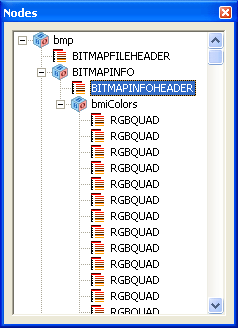 The node browser, which is the
modeless dialog box with the tree control, serves as a sort of "contents"
of a data file. To be clear, the node browser does not actually
represent a table of contents; it shows what the file contains verbatim, much
like an operating system's file explorer for a disk drive. For all
practical purposes, the content you see in the node browser is
the data file.
The node browser, which is the
modeless dialog box with the tree control, serves as a sort of "contents"
of a data file. To be clear, the node browser does not actually
represent a table of contents; it shows what the file contains verbatim, much
like an operating system's file explorer for a disk drive. For all
practical purposes, the content you see in the node browser is
the data file.


