BARfly's user interface consists of four windows: the main window, the
data display window, the node browser window, and the log window.
-
Main window: The main application window, which
contains all other windows and the menu.
-
Data display window: The large sub-window used to
display a variety of context-specific information.
-
Node browser window: The sub-window containing a
tree control for viewing and selecting nodes during node editing.
-
Log window: The sub-window that displays the last few
log messages.
Main Window
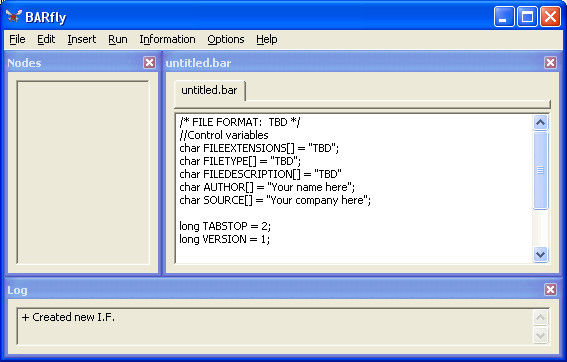
The main application window "contains" all the other windows as part of the
default BARfly configuration. If you move or resize this window, all the
sub-windows are resized to match the original ratios.
You are not required to keep the sub-windows inside the main window, although
this is preferred. If you wish, you may move the sub-windows outside the
main window or even dock them to the outside corners of the main window.
BARfly is designed to support a customized editing interface with which you are
the most comfortable.
Data Display Window
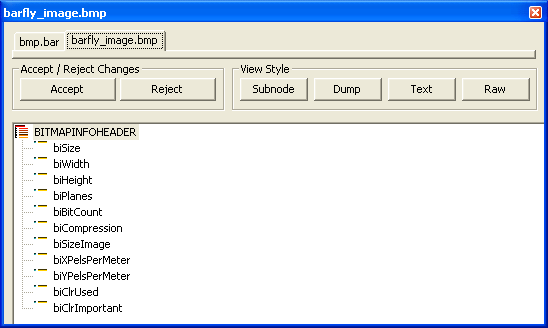
Most of the time, you will be interacting with this window. Node data
content is displayed in this window, as well as entire logs, bookmark
management lists, registry lists, memory blocks, and file, construct, and
protocol information.
The data display window cannot be hidden from view without hiding the main
window. If you need to close a particular view in this window, click the
close box in the upper right corner. Note that this only removes the
current view--all the views that can be interacted with from this window are
shown as tabs at the top of the window.
You switch bewteen views by clicking on the appropriate tab, or by pressing
CTRL+Tab.
Node Browser Window
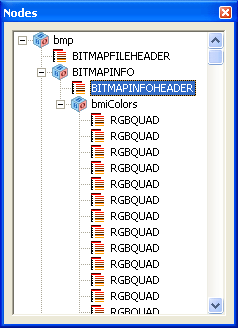
The node browser window is only used when a file has been loaded for node
editing in the data display window. While the node data content is
displayed in the data display window, the individual nodes (composing the
entire hierarchy) are displayed with a tree control. This interface is
similar to an operating system's file explorer, except the nodes represent
portions of the file's contents, rather than individual files.
You can only perform certain node editing and node insertion/deletion tasks when
a node has been selected from this window with the mouse or keyboard.
Like all tree controls, you can expand and collapse nodes from view by clicking
the +/- buttons located to the left of some line items. This helps the
user to browse only the information most pertinent to the viewing or editing
operation.
You may hide the node browser window from view by clicking the close box in the
upper right corner. To reinstate the window, select Options.Display
Node Browser.
Log Window

The log window displays the last several message lines entered into the
log. The log is an important record of attempted load, save, and editing
operations. You can copy the text from this log, if desired, by selecting
the text and pressing CTRL+C.
Log messages use a '+' or '-' character to indicate
presence or absence of an error condition. If a '+' character appears,
the operation was a success, or else the message is informational.
If a '-' character appears, this is an error.
BARfly maintains a maximum log size at any given time; the oldest log entries
are discarded to make room for the newest ones. To set this maximum size,
select Options.Memory
.
You may hide the log window from view by clicking the close box in the upper
right corner. To reinstate the window, select Options.Display Log.
Dialog Windows
BARfly also displays many different types of modal dialog
windows during the course of options selection, file selection, and node
editing. When a modal dialog box is displayed, you cannot interact with
any of the other four windows until the dialog box is closed.
See also: [The BARfly Menu] [Moving
and Resizing Windows]
|
