|
|
|
|
 About BAR registries
 |
|
A registry is a collection of compiled BAR implementation files. It is often easier to keep track of implementation files when they are stored in an itemized "bank." BAR directly supports file format registries in the form of BAR_Registry objects. BARfly further supports these registries by providing a user interface for adding, removing, viewing, and using implementation files. Each I.F. in a registry appears as a single line-item in the list. The contents of the VERSION, FILEEXTENSIONS, FILETYPE, and FILEDESCRIPTION control variables are displayed on the line, which can help to identify the I.F. To perform an operation on an I.F. stored in the registry, select its line item
in the list and click on one of the buttons to the right of the list. Viewing an I.F. stored in a registry Select the list item and click the "View" button. This opens a dependent I.F. view, which exists only as long as the registry remains open. You can analyze or use the I.F. from this view just like an I.F. that is loaded directly from the disk. Keep in mind that any attempt to close the registry will close this I.F. also. If you had opened any data files using the I.F., these data files will also be closed. This follows naturally from the schema dependencies implicit in the data formats. If you save the I.F. to the disk, you break its dependency on the registry. You can re-register the file later if you wish. If you modify, re-compile, and re-register the I.F. without saving it, the I.F. version in the registry is automatically updated. Opening an existing data file using an I.F. stored in a registry Select the list item and click the "Open" button. This opens a data file based on the I.F. Keep in mind that the data file is dependent on the I.F., so closing the registry will also close the data file. A data file opened this way is also subject to formatting re-synchronization issues as a result of subsequent re-registrations of the I.F. Construct parallel loss can occur if the data file has parts that are no longer consistent with the updated I.F., so you will get the same prompt as that given for re-compiling a stand-alone I.F. with data file dependencies. Creating a new data file using an I.F. stored in a registry Select the list item and click the "New" button. This creates a new data file based on the I.F. Keep in mind that the data file is dependent on the I.F., so closing the registry will also close the data file. A data file created this way is also subject to formatting re-synchronization issues as a result of subsequent re-registrations of the I.F. Construct parallel loss can occur if the data file has parts that are no longer consistent with the updated I.F., so you will get the same prompt as that given for re-compiling a stand-alone I.F. with data file dependencies. Saving a registry You save a registry just like you would save any other type of file. Changes you make to the registry in BARfly are never implicitly saved; you must select File.Save or File.Save As from the menu.
See also: [Creating/Opening registries] [Adding and removing BAR I.F.s]
|
|
|
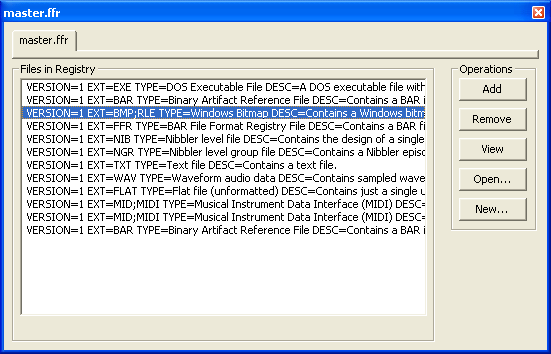 The example to the left shows a BAR
registry file open for editing.
The example to the left shows a BAR
registry file open for editing.