|
|
|
|
 Subnode View
 |
|
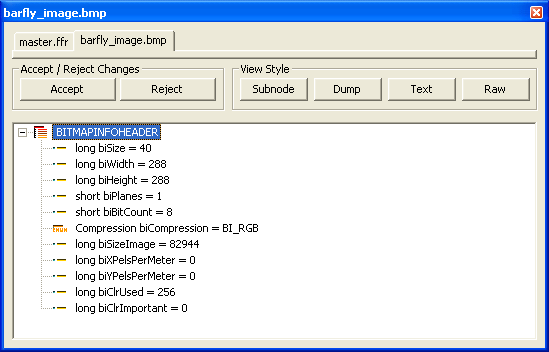
In the example to the left, a common data structure found in a BMP file, called "BITMAPINFOHEADER," is being shown in the subnode view. The members of the data structure are reported in the order they are declared in the I.F. By default, the subnode view shows the type, name, and value of each data
member. If you wish, you can change the type of information reported on
each line by selecting Options.Tree Control Line Info from the
menu. Subnode view reports values, enumerated constant names, and strings depending on the data type and the options set for subnode view. Numerical variables, like integers or floating-point numbers, are reported as numbers. Derived-from-simple structures are reported as enumerated constant names if the value matches up to a name declared in the I.F., or as numbers if the value does not match any name. Arrays of characters are reported as strings if the subnode view settings specify to do so. It is also possible to report some integer variables as strings, but this is not the BARfly default. Subnode view differs from the node browser in many important respects:
Organized blocks and bit scan blocks cannot be displayed in subnode view. Click here for information about changing subnode view settings. Click here for information about editing in subnode view.
See also:
|
|
|
 Subnode View displays
node data with a "sub-tree" control, which closely follows the layout and user
interface of the node browser's tree control. The top of the tree is the
node selected in the node browser. All children of this node are
displayed in the subnode view.
Subnode View displays
node data with a "sub-tree" control, which closely follows the layout and user
interface of the node browser's tree control. The top of the tree is the
node selected in the node browser. All children of this node are
displayed in the subnode view.