|
|
|
|
 Text
View Text
View |
|
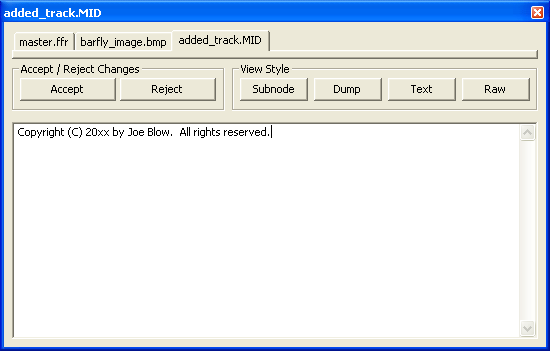
In the example to the left, a MIDI file's "Copyright" field is displayed in text view, with an edit control used to display the text. Each character in the edit control represents a character in the source data. Many implementation files isolate specific fields within the file containing text. It is commonplace to use unorganized blocks or text blocks for these fields, because text, by its very nature, tends to be variable-length. Data structures can also contain text, but these types of nodes
generally do not work well with text view. This is because the first byte
of a data structure is rarely the beginning of text, and the last byte is
rarely the end of text. Binary data tend to proliferate in data
structures, which makes the output in text view not worth viewing most of the
time. Text view addresses character size conventions associated with typical text fields stored in binary files. Traditionally, 8-bit ASCII characters have been used to display text, but Unicode has extended character size to 16 bits or more. BARfly will translate both 8-bit characters and "wide characters" into a format that can be consistently viewed and edited. Byte order of "wide characters" is also accounted for. Text view also addresses the fact that line breaks are not standardized in multi-line text fields. For example, Unix systems typically break lines with a line feed character (ASCII 10), while DOS and Windows systems typically break lines with both a carriage return (ASCII 13) and a line feed. BARfly lets you configure how line breaks are interpreted when generating multi-line data in text view. BARfly can even let the user define a custom line break character code for some of the more obscure line break implementations. Organized blocks and bit scan blocks cannot be displayed in text view. Click here for information about changing text view settings. Click here for information about editing in text view.
See also:
|
|
|
 Text View displays
text blocks and unorganized blocks containing text. Text
view can also be used on data structures, although these generally do not
contain just text.
Text View displays
text blocks and unorganized blocks containing text. Text
view can also be used on data structures, although these generally do not
contain just text.